The letterhead definition editor is a powerful and intuitive feature of the communication management system, and is available to customise the content, style and formatting of the header and footer components of the principle letterhead and also any subsequent 'continuation' pages. To aid the accurate placement of all custom text, the letterhead design area is divided into three sections: header, content (shown for completeness but cannot be amended) and footer. Simply overtyping an editable section will commence the customisation process. The supporting user interface groups tools together by task and all the most frequently-used commands are close at hand. All the features you require to produce professional letterheads are available in a single ribbon, ensuring fast and efficient replication of the housing organisation's communication standards. The key features are described below.
Character Formatting

- Use these options to apply Bold, Italic, Underline, Strike-through, Subscript and Superscript character formatting.
Paragraph Formatting

- Styles. Choose from a collection of in-line styles to emphasise text.
- Normal. Choose from a collection of heading and body text styles.
- Font. A number of standard fonts are supported by the template editor.
Text Alignment

- Text paragraphs can be aligned left or right, centred or justified.
Lists and Tabulation

- Use these options to insert numbered and bullet lists, increase or decrease paragraph indentations and select all text ready for global formatting.
Colour Palette

- Use these options to adjust the text and background colour of the communication template; a standard and extended colour palette are available.
Special Characters and Symbols

- Special Characters. An array of special characters and symbols are available for inclusion in the communication template.
- Images. An external image can be uploaded into the communication template (e.g. a housing organisation logo).
Tables and Line Separators

- Tables. Use this option to include a table in the communication template, defining the number of rows, columns, border appearance, text alignment, etc.
- Line Separators. Insert a horizontal line at any point to visually separate blocks of text.
Find and Replace

- Use these options to find and replace text within the communication template.
Barcode Font

- Use this option to convert a selection of highlighted text into the Code128 barcode font - a variable length format that can be read in either direction and incorporates a checksum for built in validation.
Merge Tag Formatting
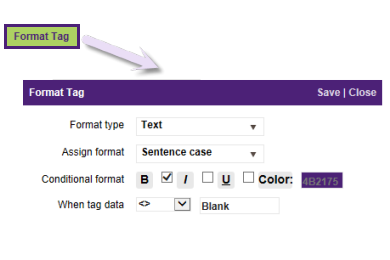
- Use this option to control the appearance of merge tag data within the body text. With a merge tag selected in the left-hand pane, click on Format Tag and choose the required formatting options: Format Type (Text, Date or List Separator), Assign Format (Text specific, Date specific or List delimiter options available), Conditional Format (Bold, Italic, Underline and Colour) to be applied when the desired condition is satisfied using standard expressions (< = <> <= > >=).
See related topics...
To create a new letterhead definition


